
Upload one image
Open the tool and choose a JPG, PNG or WebP file up to 10 MB that you have permission to edit.
Sharpen an image online with 2× AI upscaling. Compare the result with your original and check the details that matter.
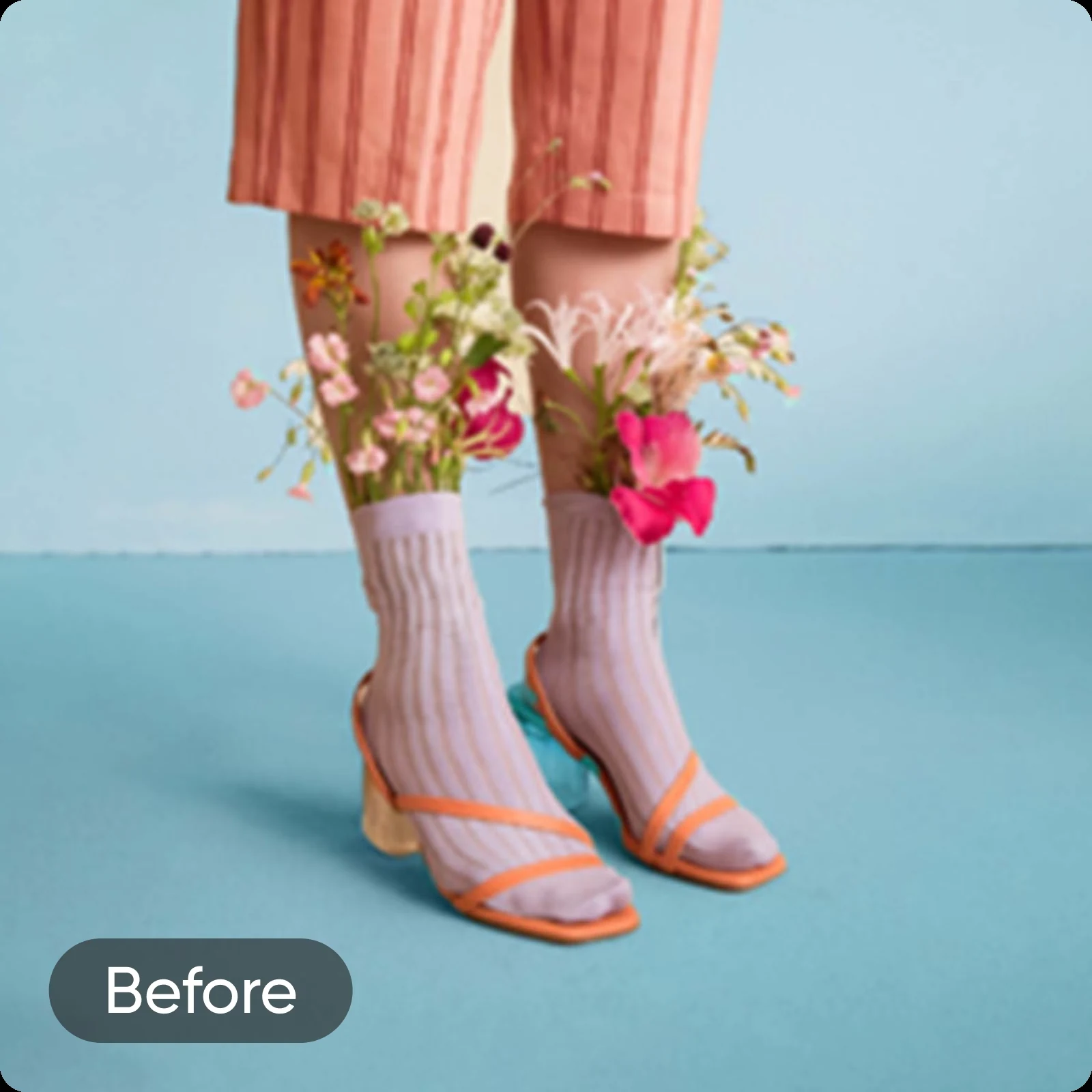
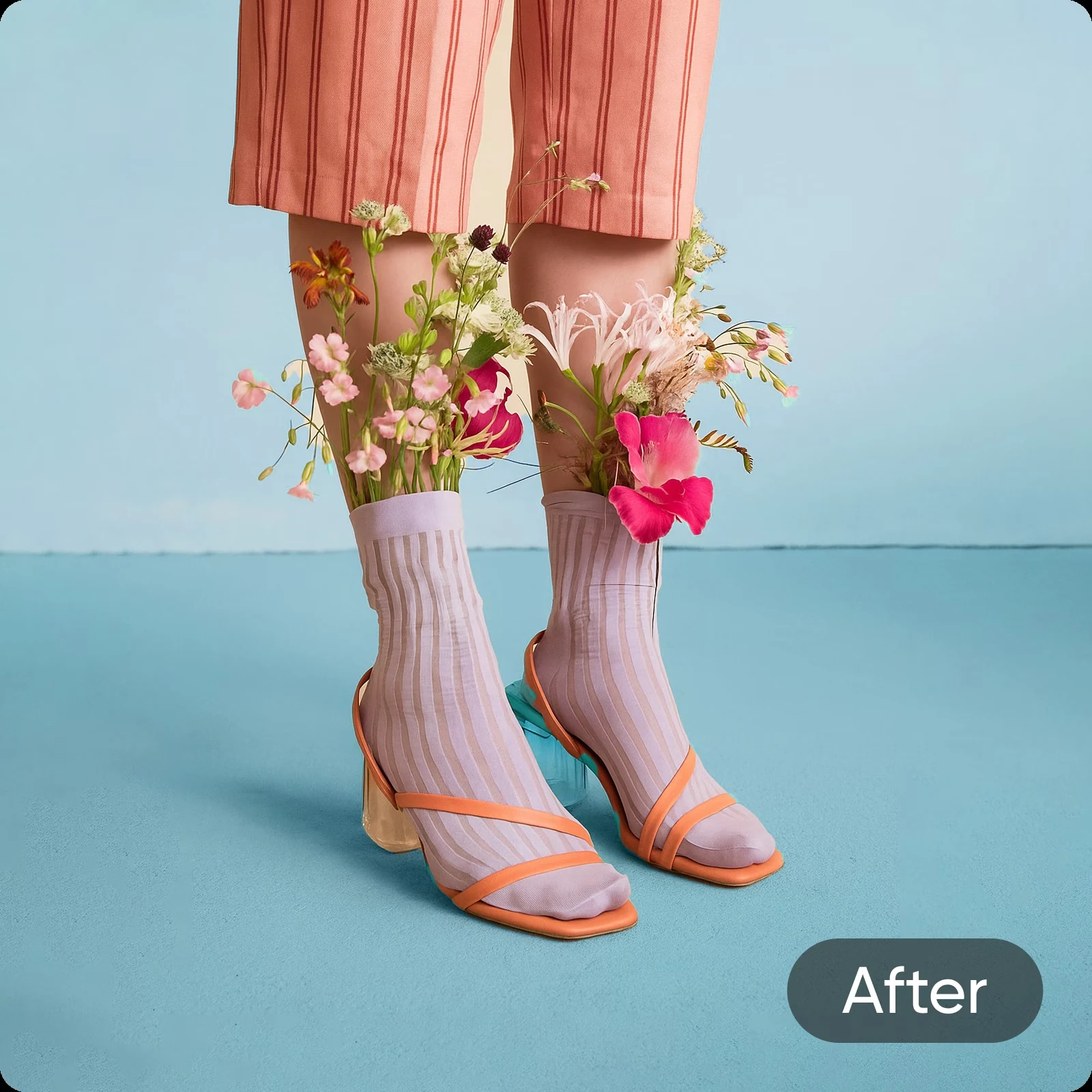
Understand the result
Sharpening makes transitions around edges appear more distinct. Traditional adjustments often increase local contrast, while AI upscaling estimates detail as it enlarges the image. Lem Gen's tool uses the latter approach: it requests twice the width and height, without a separate strength slider. Estimated details may differ from the original, especially when the source is very blurry.
Open the tool and choose a JPG, PNG or WebP file up to 10 MB that you have permission to edit.
Sign in and check the 2× enlargement, size limit, visibility and your account’s credit cost.
Inspect edges, faces, lettering and textures against the source image, then download the result if it meets your needs.
| Goal | Approach | Trade-off |
|---|---|---|
| Larger image with clearer-looking detail | Try 2× AI upscaling | Fine detail may be estimated or changed |
| Small edge adjustment at the same size | Use an editor with a sharpening control | Strong settings can create halos |
| Read important blurred text | Return to the source or rescan | An AI reconstruction may be incorrect |
Review faces, hair and textures after enlargement.
Check that labels and product details remain accurate.
Start with the best source and inspect the output at its intended size.
Open the tool and upload a supported image. Lem Gen requests 2× AI upscaling, which can change how fine details appear; review your result against the original before using it.
No. The current tool requests a fixed 2× upscale and does not expose separate sharpening, denoising or color controls.
Results vary. AI can estimate plausible detail, but it cannot guarantee recovery of information that was never captured. Severe motion blur or an out-of-focus face may remain inaccurate.
Small or blurred lettering may change or be invented. Do not rely on the result to verify labels, documents or other important text; compare with the original.
Upload one JPG, PNG or WebP image up to 10 MB. At 2×, the requested result must have a longest side of no more than 3,840 pixels and an area of no more than 3,840 × 2,160 pixels.
The standard cost is 100 credits per image, including smaller images. Eligible plans may receive a discount; sign in to see your account’s cost before submitting.
Sign-in is required to create a task. Free-account generations are public; eligible paid users can choose private visibility. Review the visibility setting before submitting.
You can try images you have permission to edit. For product photos, check labels and colors; for print, review the final dimensions and appearance at the intended size.