
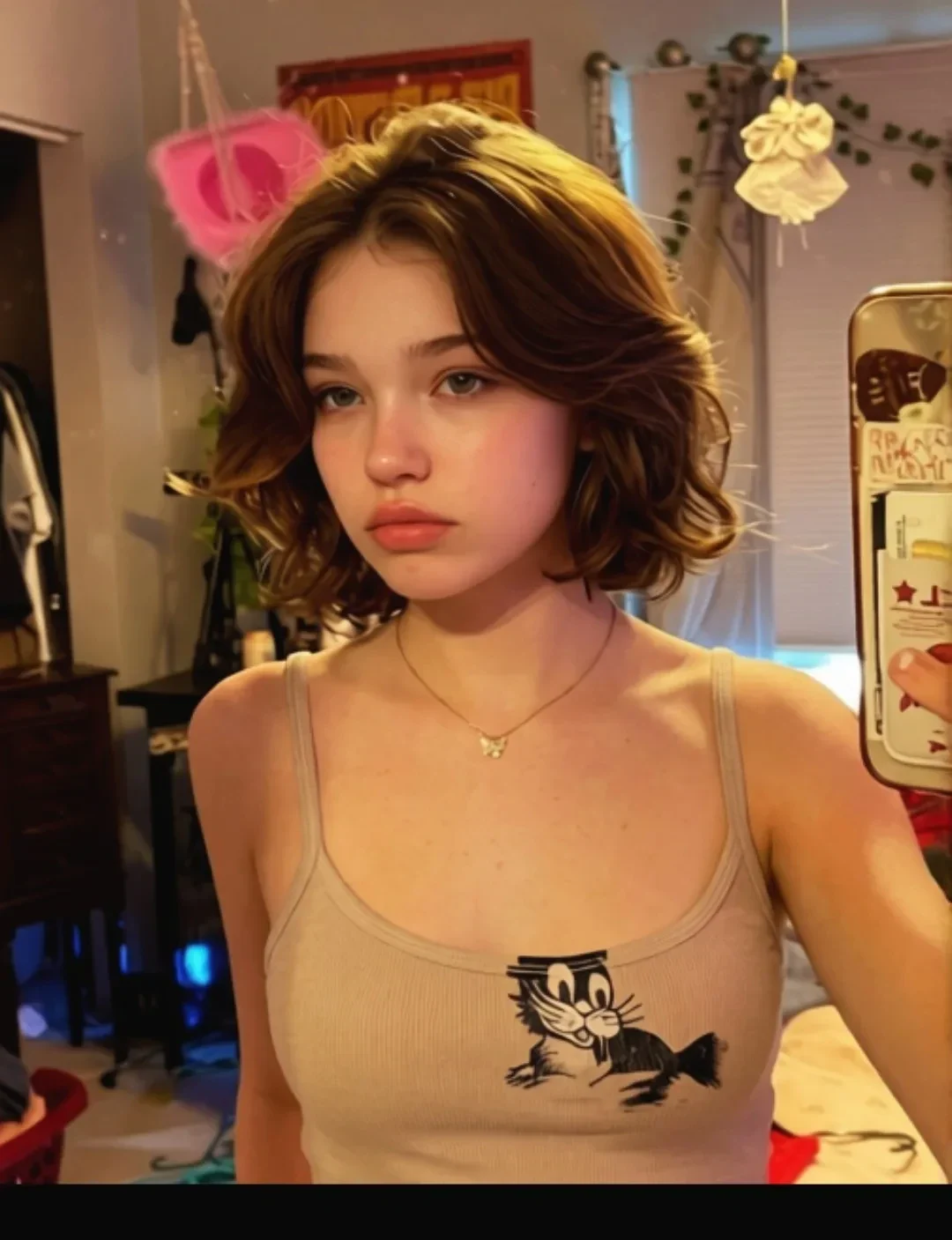
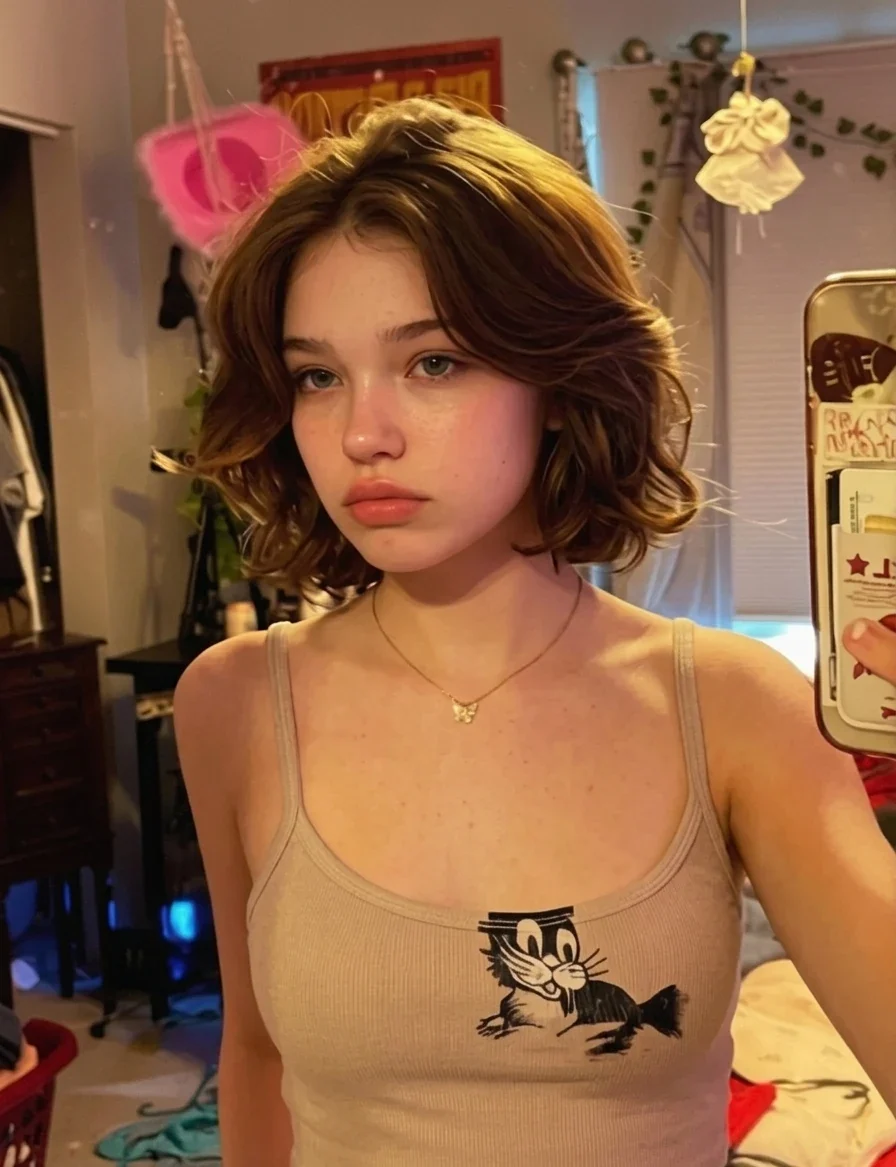
A more neutral indoor portrait
A calmer color balance can make an overly warm scene feel less processed.
Tone down an overly polished finish. Use an editable instruction to explore more natural texture, color and light while keeping your image's subject in focus.
Your image, your direction
Upload an image and refine the prepared prompt. Sign in to generate; the editor shows the credit cost and visibility before you submit.
AI Model
Upload image(0/8)
Prompt
Aspect ratio
Resolution
Output format
Public Visibility
iFree generations stay public unless you upgrade.
Illustrative edits, not generated with Lem Gen. Results vary.
Balance a warm color cast
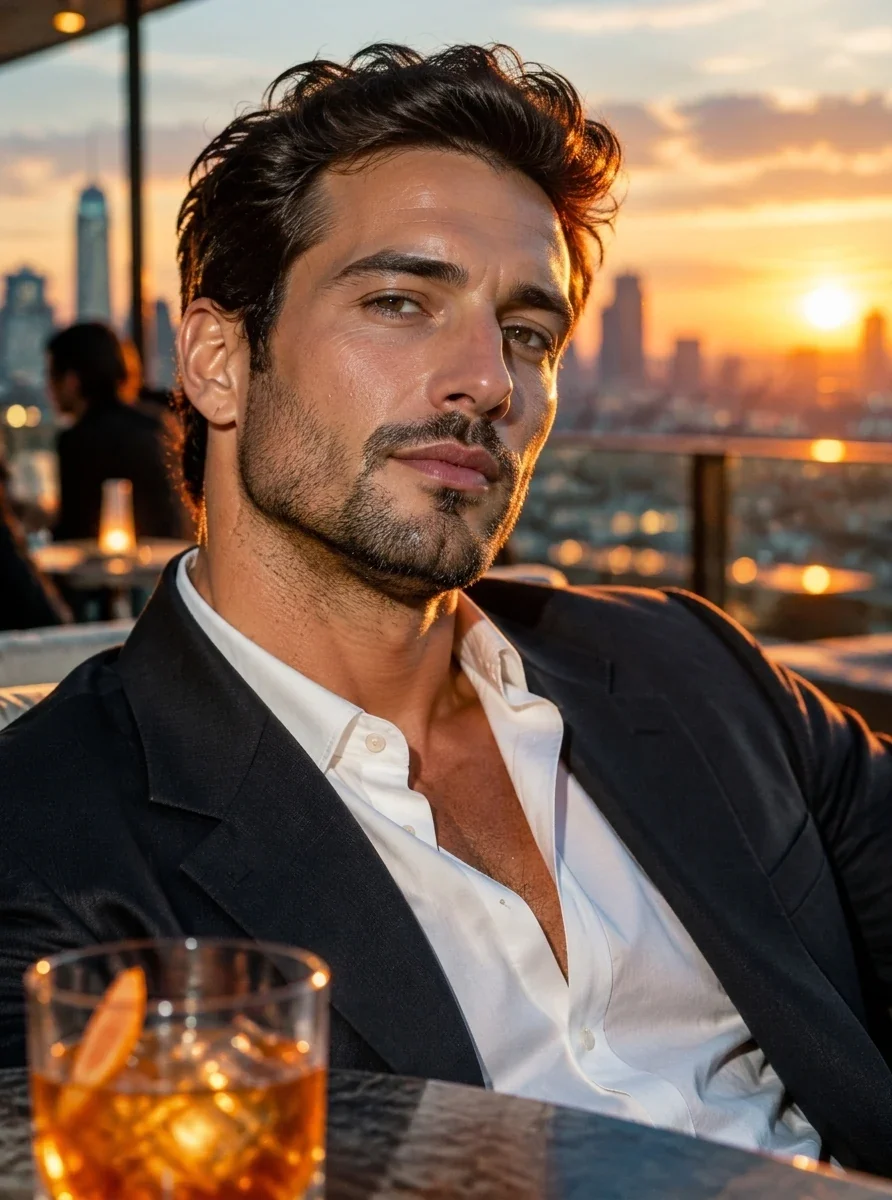
Soften excessive skin shine
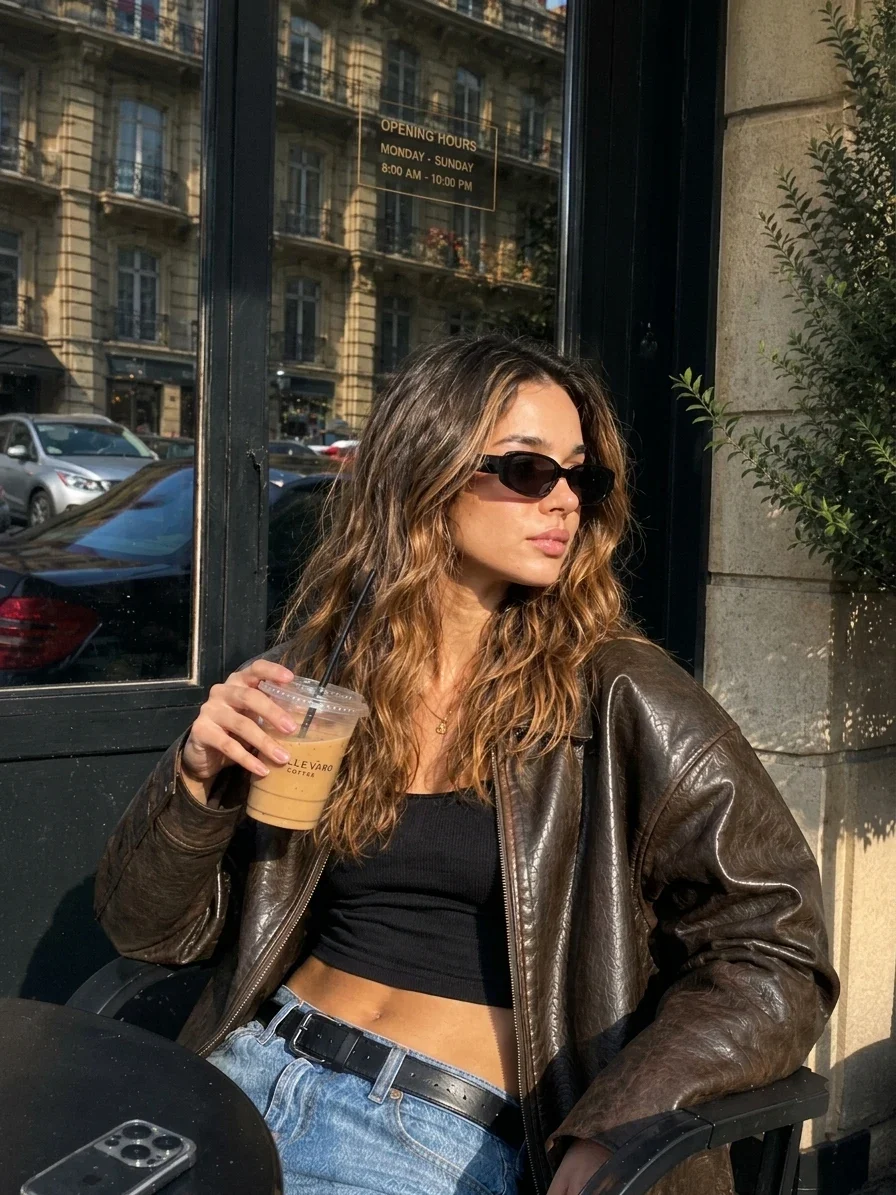
Refine a hazy scene
Look closer
These illustrative before-and-after edits were not generated with Lem Gen. They show possible visual directions; your results depend on the image, model and instruction.
A calmer color balance can make an overly warm scene feel less processed.
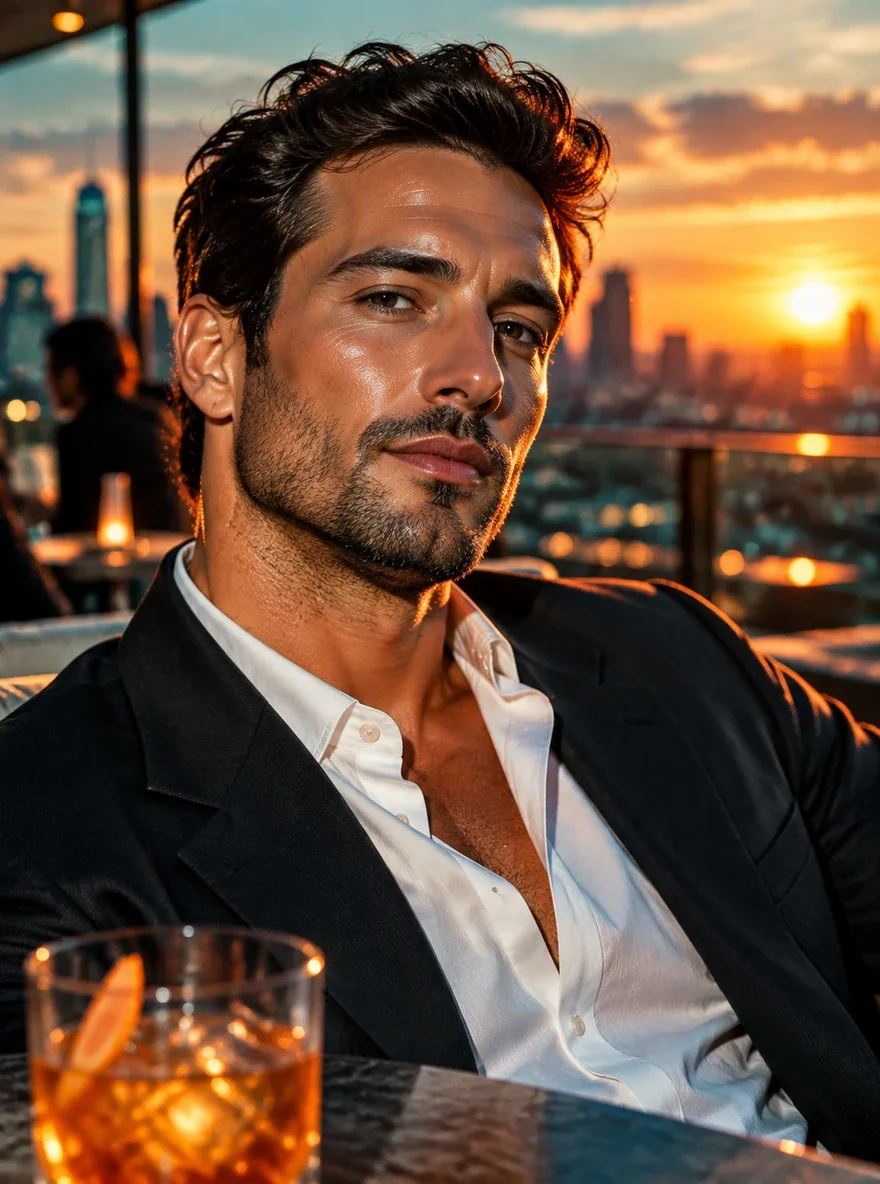
Compare the highlights and skin texture without assuming every detail will remain identical.
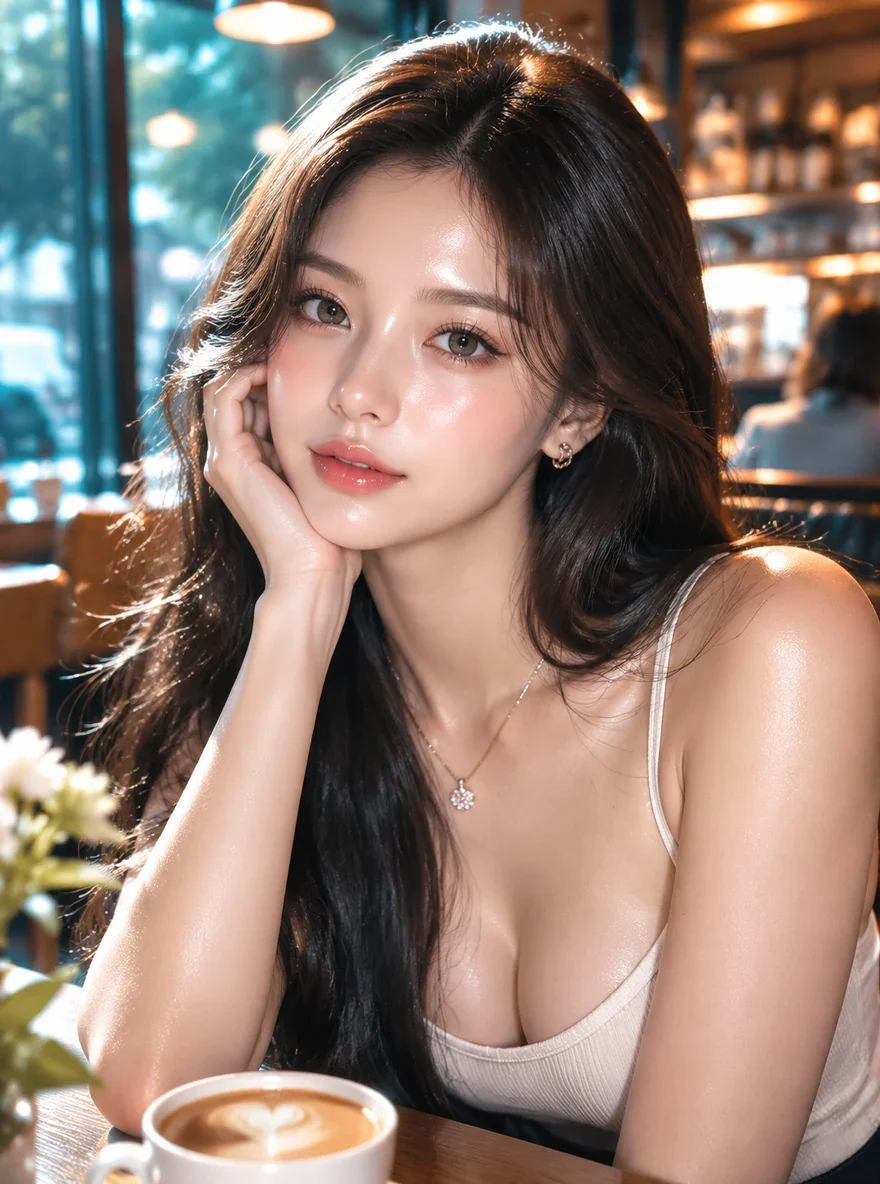
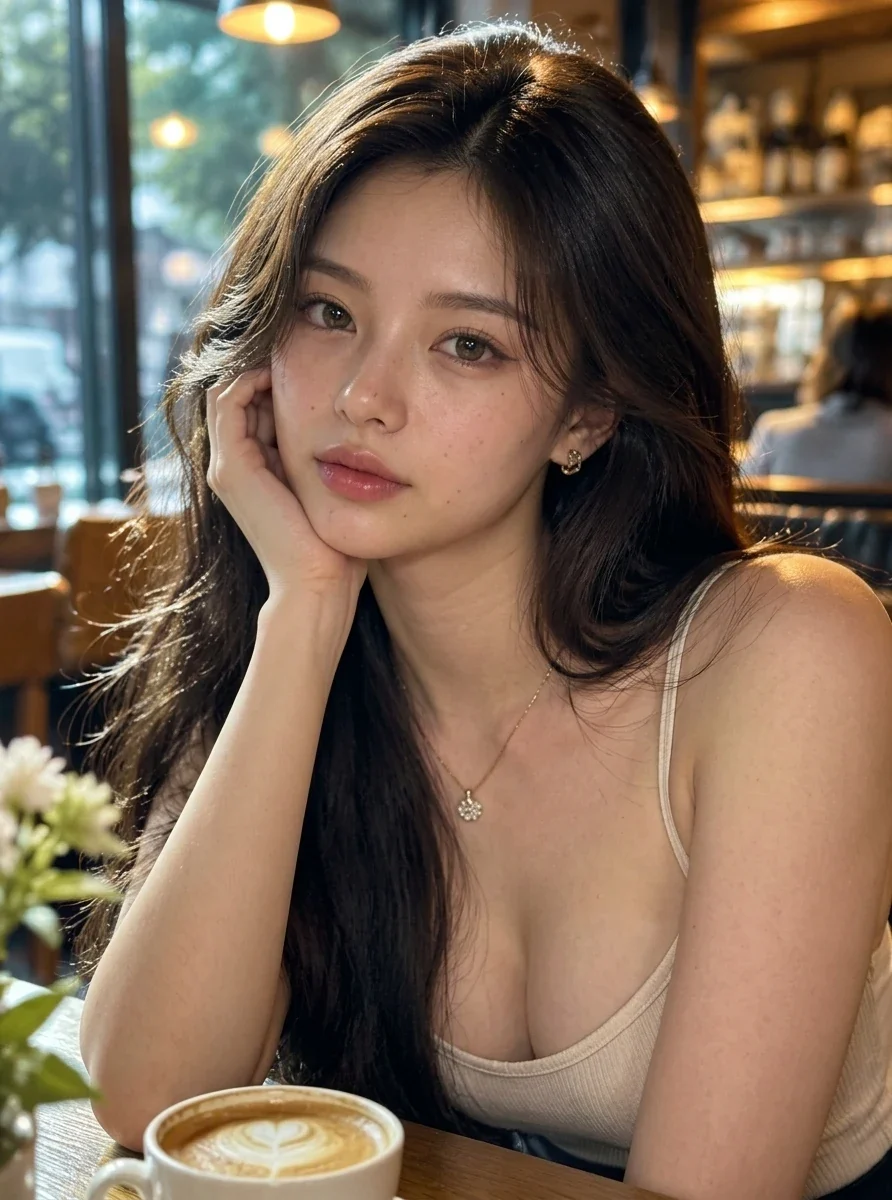
A subtle edit can reduce the appearance of a strong beauty filter.
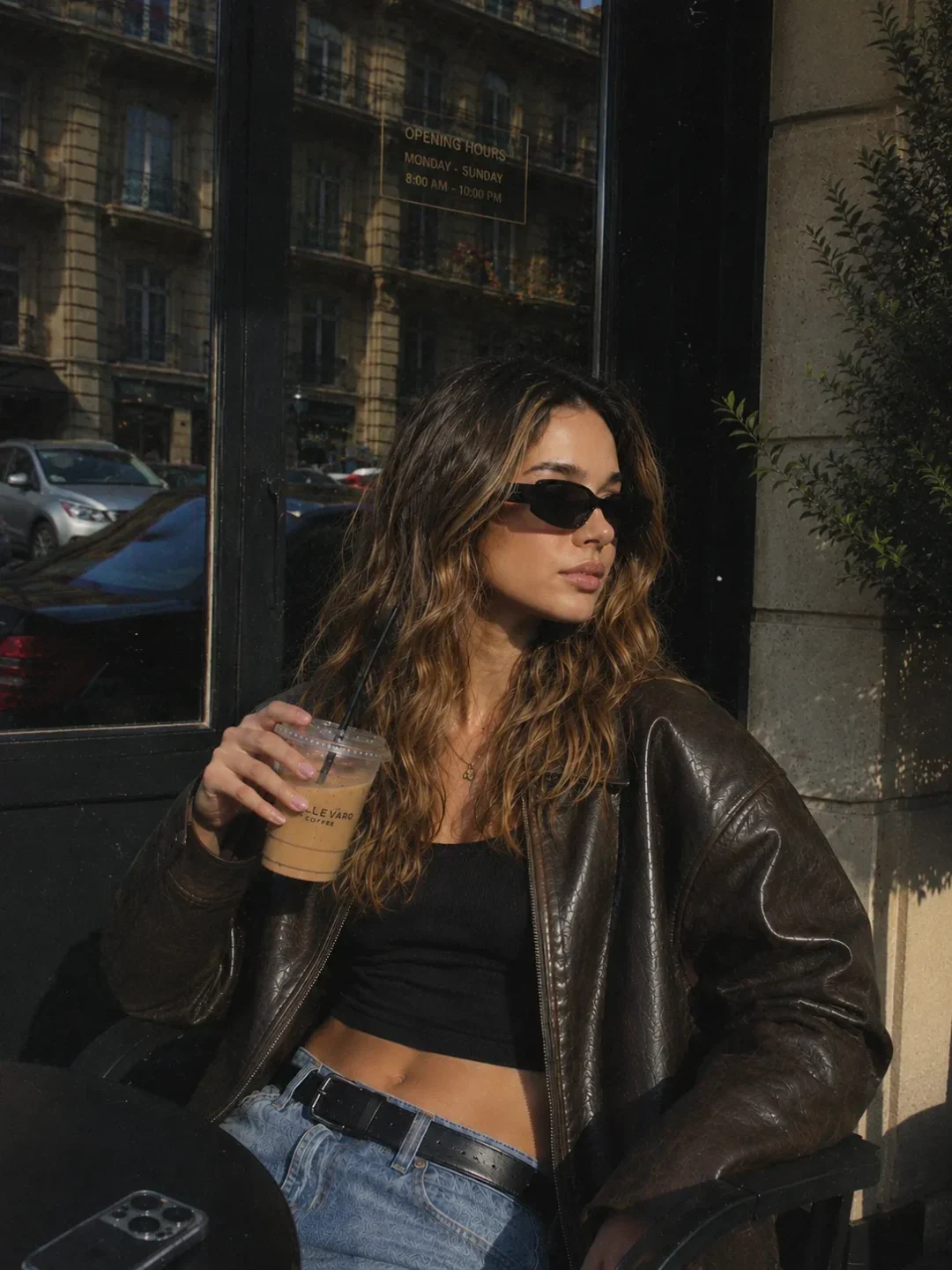
Look at color, surface detail and background clarity alongside the subject.
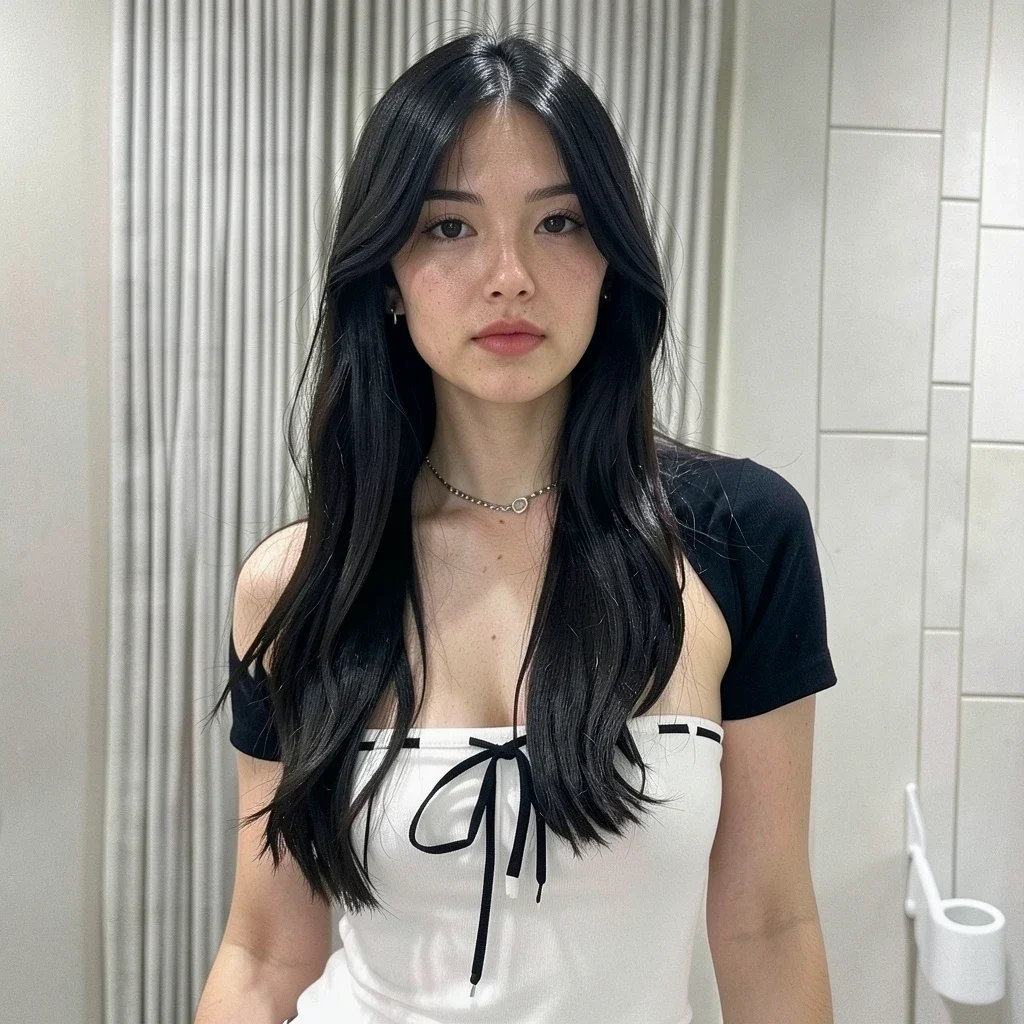
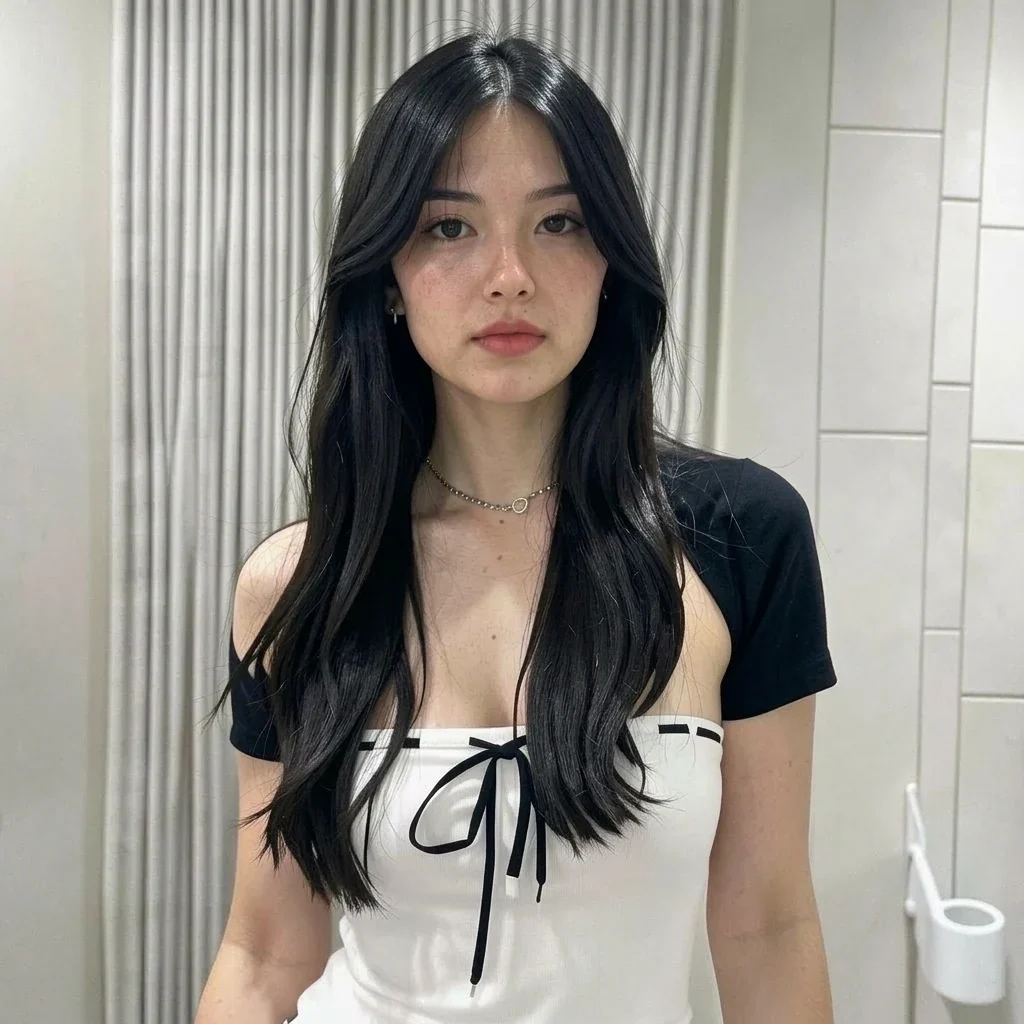
When the starting image is already close to the look you want, ask for a restrained edit.
Removing the AI look means editing visual qualities that make an image feel too polished or rendered. A prompt can ask an image model to adjust the texture, light and color of an existing image while attempting to keep its subject and composition.
The edit is still AI-generated. It may change details and cannot establish whether an image is real or guarantee a detector result.
Request subtle surface variation instead of a uniformly smooth finish.
Ask for less shine where bright reflections feel too strong.
Describe a more restrained palette or a less intense color cast.
Ask for a coherent light source and softer, believable shadows.
Upload an image you have permission to edit. Choose an image editing model and review its settings.
Start with the prepared prompt or focus on one issue, such as shine, color or lighting.
Check the displayed credit cost before generating, then compare faces, text and other details with your original.
| Approach | Use it for | Consider |
|---|---|---|
| Prompt-based image edit | Adjust the appearance of an existing image. | Generative edits can change other details. |
| Manual retouching | Fine control over small areas. | Requires editing time and experience. |
| Create a new image | Explore a new composition or concept. | The subject and framing may differ. |
Review identity, expression and skin texture after each edit.
Check packaging, labels and colors against the original.
Keep the style you intended while exploring a less processed finish.
Upload the image to the editor, choose a model and adjust the prepared instruction. Ask for specific changes to lighting, color or texture, then compare the generated edit with your original.
Depending on the image, very smooth surfaces, heavy glow, uniform lighting or intense color can make it feel overprocessed. These are visual characteristics, not reliable proof of how an image was made.
No detector outcome is guaranteed. The edit is itself generated with AI, and its appearance does not change its origin. Follow any disclosure and labeling rules that apply where you publish it.
Yes. The instruction is editable, so you can ask for one change and describe what should stay the same. Generative models can still alter other details; inspect the result.
The prepared instruction asks the model to retain them, but identity, text, objects or framing can change. Review the result carefully before using it, especially when accuracy matters.
Yes, if you have permission to edit it. The prepared prompt asks the model to preserve non-photographic styles, but you may need to revise the instruction and check the output.
Image edits use credits. The cost depends on the model, settings and your plan, and the editor displays it before submission. See the pricing page for plans.
You can explore the editor without an account, but sign-in is required to generate. The editor states that free generations are public unless you upgrade; review its visibility control before submitting.
Use images you have permission to edit and follow the Acceptable Use Policy. Do not use the tool for non-consensual impersonation, deceptive synthetic media or infringement.
Start with the prepared prompt, then review your settings and credit cost in the editor.