
Choose your source image
Open the image enlarger and upload one JPG, PNG or WebP image up to 10 MB that you have permission to edit.
Use this 4K image upscaler to enlarge an image by 2× with AI. Start with the right dimensions for a 4K target, then check the details in your result.
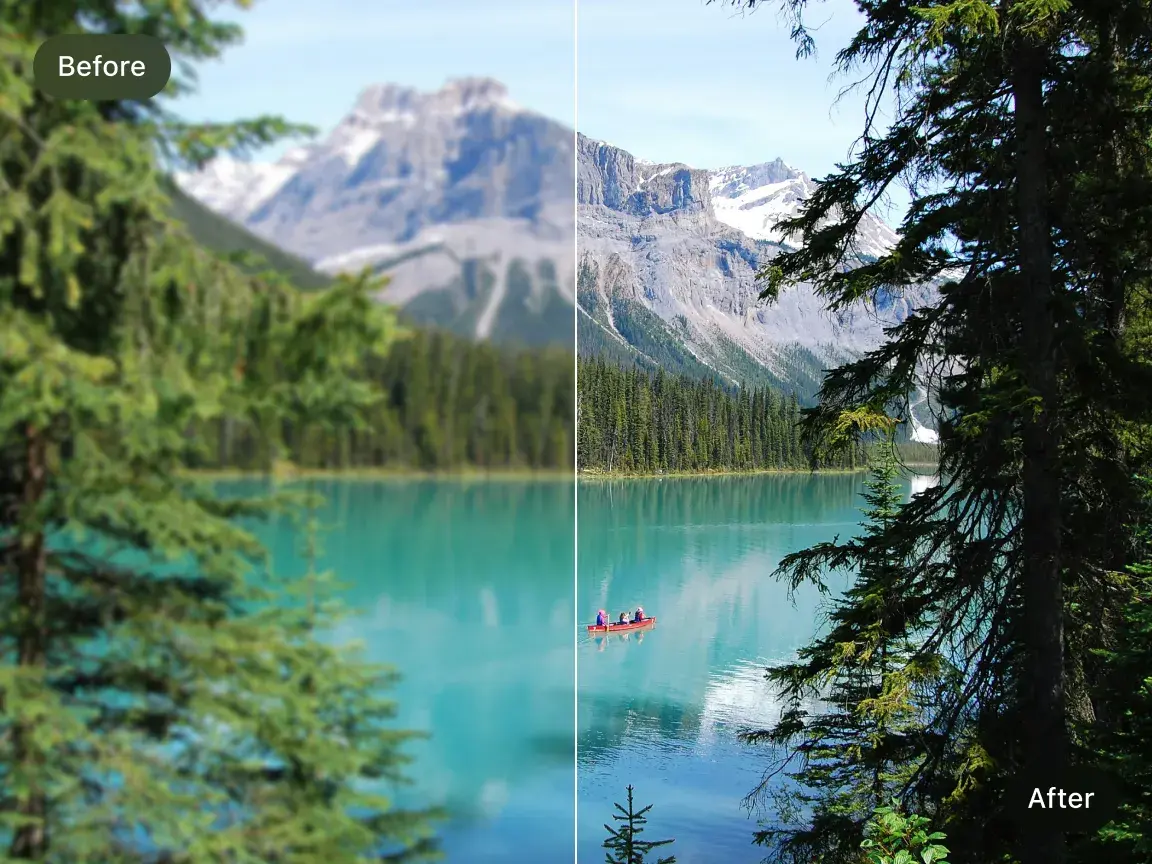
Understand the result
An AI image upscaler increases pixel dimensions while estimating detail from the original. Here, the image enlarger requests twice the width and height. It does not automatically produce a 4K file from every input, and it cannot guarantee that reconstructed details match the original scene.
For the common 3840 × 2160 UHD target, a 1920 × 1080 source corresponds to that size at 2×. A 1280 × 720 source corresponds to 2560 × 1440. Results are subject to provider limits.
The requested 2× result must fit within a 3,840-pixel longest side and 3,840 × 2,160 total pixels. 4K can refer to different dimensions; check the requirements of your destination.
Open the image enlarger and upload one JPG, PNG or WebP image up to 10 MB that you have permission to edit.
Sign in, check the 2× setting, visibility and displayed credit cost, then start the upscale.
Compare the output with your original, especially faces, text and fine edges, before downloading.
| Source | 2× dimensions | Consideration |
|---|---|---|
| 1920 × 1080 | 3840 × 2160 | Matches UHD 4K dimensions |
| 1280 × 720 | 2560 × 1440 | Larger, but below UHD 4K |
| Square image | 2× width and height | Keeps the original proportions |
The examples describe the requested scale, not a guarantee of accepted input or output dimensions.
Prepare an image for a larger display, while reviewing texture and facial detail.
Enlarge a product shot and check labels and edges against the original.
Work from the largest source available and verify the result at its intended size.
No. This tool requests a 2× enlargement in each dimension. A 1920 × 1080 input corresponds to 3840 × 2160 at 2×, but a smaller image will generally remain below that size. Output is subject to provider limits.
AI estimates detail from the available image; it cannot reliably recover information that was never captured. Check faces, lettering and other important details against the original.
Upload one JPG, PNG or WebP image, up to 10 MB. At 2×, its longest side must be no more than 3,840 pixels and its total area no more than 3,840 × 2,160 pixels. You must have permission to edit it.
Upscaling uses a standard 100 credits per image, including smaller images; eligible plans may receive a discount. The enlarger shows your account’s cost before submission. Sign in to see it, and visit pricing for plan details.
Larger pixel dimensions can help prepare an image for print, but suitable print size also depends on print resolution and the quality of the original. Inspect the result at the intended size.
It can. Fine details may be altered or invented, particularly in small or blurry sources. Review the result instead of treating it as a faithful reconstruction.