
PixVerse V6 Max: Features, Limits & Prompt Guide
Learn what PixVerse V6 Max does, its verified video and audio limits, and practical text-to-video and image-to-video prompts for a controlled workflow.
PixVerse V6 Max is an AI video model for turning text or a starting image into a short video, with optional native audio. The official direct API currently lists clips from 1 to 15 seconds and output up to 1080p. It is designed for work such as product shots, character scenes, social clips, and short visual stories.
The useful question is not just whether the result looks cinematic. It is whether the model can follow your shot, keep the important details stable, and produce a clip you can actually edit into a finished video. This guide explains the verified controls, the limits behind the “Max” name, and a repeatable way to write and review prompts.
Fact check: October 23, 2026. Specifications below were checked against the PixVerse API capability map, API changelog, endpoint documentation, and the PixVerse-owned model description on Replicate. The official changelog records V6 Max text-to-video and image-to-video support on October 22, 2026. This is a documentation-based guide, not a hands-on benchmark. All six images are original editorial illustrations, not outputs generated by PixVerse V6 Max.
What does PixVerse V6 Max actually support?
“Max” identifies a model variant. It does not, by itself, mean an unlimited subscription, native 4K output, or access to every tool in the wider PixVerse product. Start with the exact model selection and the controls your provider exposes.
| Control | Documented support |
|---|---|
| Model identifier | v6-max |
| Input workflows | Text-to-video and image-to-video |
| Duration | 1–15 seconds in the direct API |
| Resolution | 360p, 540p, 720p, and 1080p |
| Text-to-video aspect ratios | 16:9, 9:16, 4:3, 3:4, 1:1, 2:3, 3:2, and 21:9 |
| Audio | Optional native audio |
| Unsupported workflows in this map | Templates, first/last-frame transitions, multi-subject references, video references, and extension |
These are the direct API's documented options. Another provider may offer fewer choices: the PixVerse-owned Replicate integration, for example, exposes a smaller duration and aspect-ratio menu. An option missing from one interface is not proof that the underlying model lacks it. Equally, a control available elsewhere in PixVerse is not proof that it works with V6 Max.
PixVerse V6 Max versus V6: choose by the workflow
PixVerse positions V6 Max around stronger prompt adherence, visual realism, consistency, acting, and audio-visual storytelling. Those are vendor claims, not a guarantee that every face, product label, or spoken line will be correct.
The important practical distinction is tool coverage. The official capability map lists additional reference, transition, and extension workflows for base V6 that are not currently available for Max. If your project requires an exact first and last image, an existing video reference, or extending an existing clip, do not choose Max simply because its name sounds more capable. Check that the selected model supports the operation you need.
Multiple generated shots inside one request are also different from extending a previous video. A provider's multi-clip switch does not turn an unsupported extension endpoint into a supported one.
How to write a PixVerse V6 Max text-to-video prompt
A useful prompt is a small production brief. Give the model one subject, one principal action, a clear camera instruction, and an ending it can reach within the selected duration. Describe changes over time instead of writing only a beautiful still-image description.
Use this order:
- Subject and scene: what must be present, where it is, and the visual treatment.
- Action: what happens, in chronological order.
- Camera: framing and one deliberate movement.
- Lighting and materials: the cues that make the shot readable.
- Audio: dialogue, ambience, effects, music, or the intended absence of them.
- Constraints and ending: what must stay stable and where the motion should finish.
Set duration, aspect ratio, and resolution in the actual generation controls. Writing “1080p, 15 seconds” inside a prompt is not a substitute for selecting those settings.
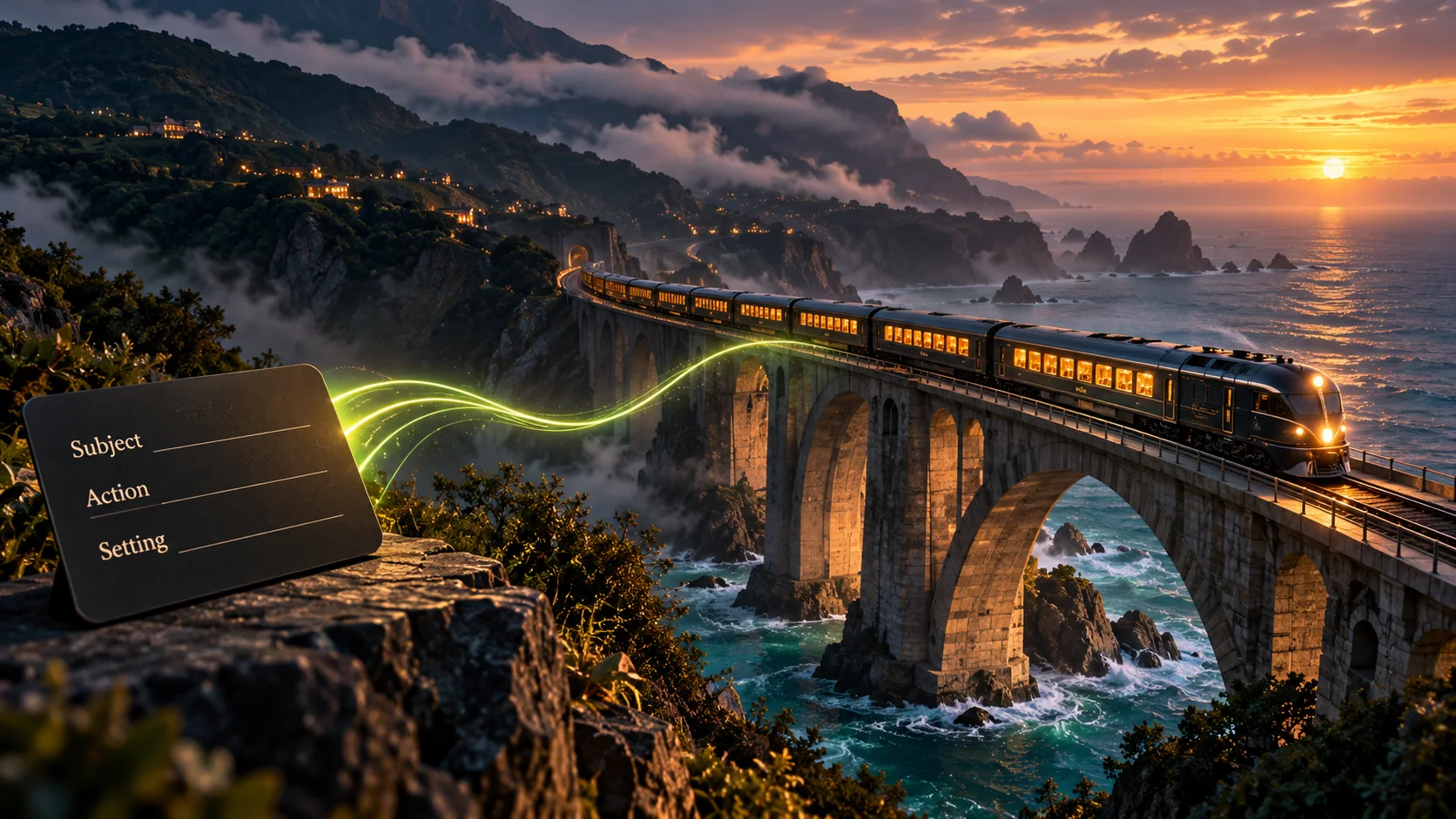
Concept illustration: translate the brief into visible action, framing, and a clear final moment.
Prompt example: an eight-second product hero shot
Suggested settings: text-to-video, 8 seconds, 16:9. Use a lower resolution for the first composition test; select the final resolution only after the shot works.
A single unbranded amber-glass perfume bottle stands on a charcoal stone
plinth in a quiet studio. Medium close-up, bottle fully visible.

At the start, the bottle is motionless. A narrow band of warm light travels
slowly across the glass from left to right, revealing the liquid and bevels.
The camera makes one slow, straight push toward the bottle, ending on a
steady close-up with space above and beside it for a title added in editing.

Keep the bottle shape, cap, plinth, and background consistent. Realistic
reflections, soft shadow, restrained contrast. No floating particles,
extra bottles, generated lettering, scene cuts, or sudden camera movement.
This brief gives each instruction a job. The light reveals the material, the push-in reveals detail, and the ending leaves space for an editable title. If a specific real product must remain recognizable, use an authorized reference image rather than expecting text alone to define its geometry.
For more ways to separate the product from its setting, use the AI product photography prompt guide and the product advertising prompt collection.
How to use PixVerse V6 Max image-to-video
Image-to-video starts with a visual anchor. Your starting image supplies the composition and appearance; the prompt should explain the intended motion and what must remain unchanged. Re-describing the subject in incompatible detail can introduce a conflict with the image.
Choose an image that already supports the shot: a clean subject silhouette, useful space around moving objects, understandable lighting, and a crop close to the final delivery format. A close-cropped portrait is a poor starting point for a prompt that suddenly needs a full-body running scene.
A five-step reference workflow
- Choose the anchor. Select a reference you have permission to use, with the product or character already framed clearly.
- Prepare the image. Resolve visible defects before animation. Use the image-to-prompt workflow to identify the image's visual constraints, or prepare a reference in the Lem Gen image Workspace.
- Select the actual model. In your video provider, explicitly select V6 Max and image-to-video. Confirm the available duration and output settings.
- Prompt only the required change. Start with a small subject action and one camera behavior. State the features that should remain stable.
- Review the whole clip. Compare the beginning, middle, and end against the source. A convincing opening does not prove the identity stays intact.
Lem Gen's links here help with prompt research and image preparation. This guide does not announce V6 Max availability in the Lem Gen Workspace; use a provider that explicitly lists the model for the video-generation step.
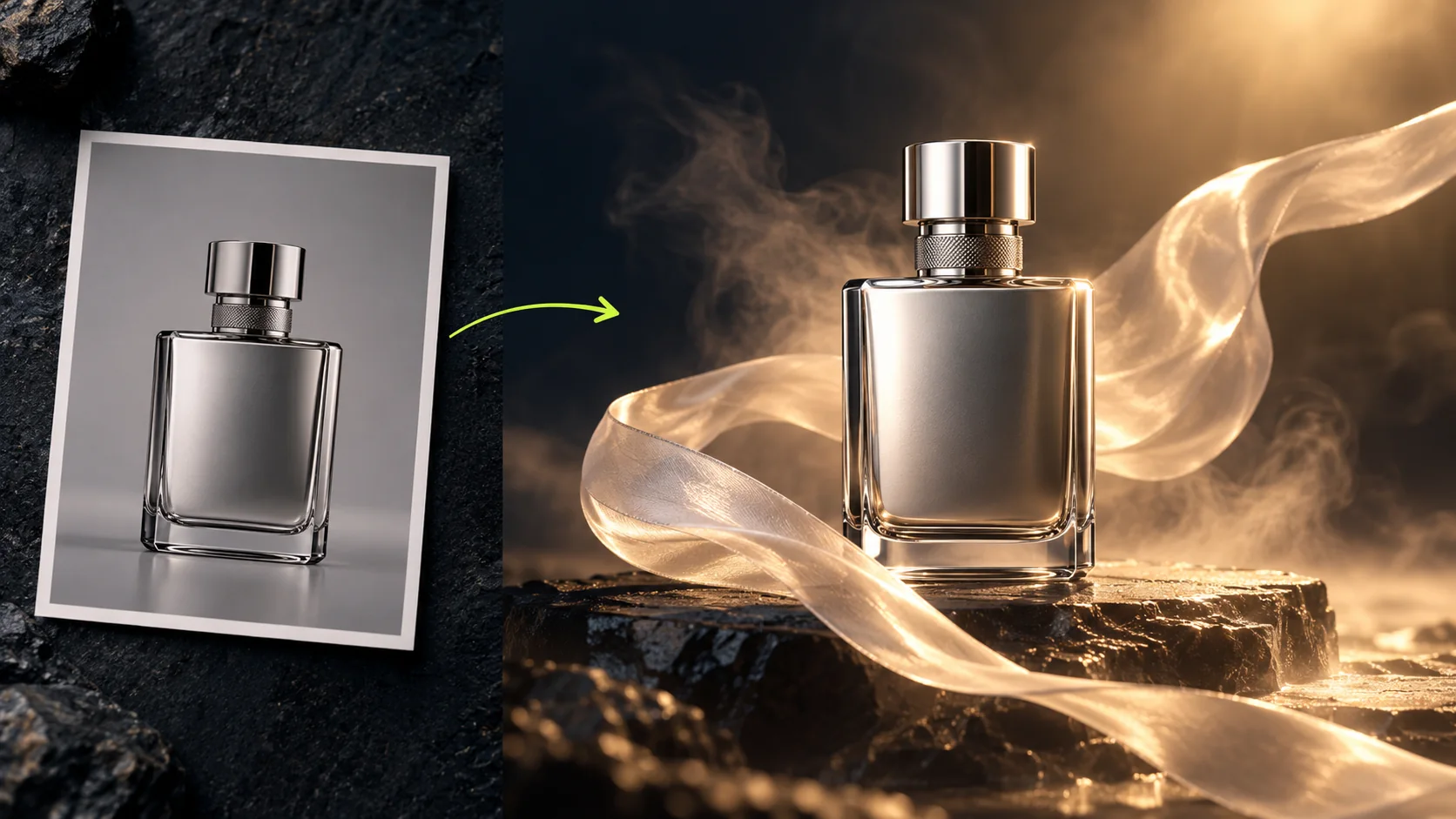
Concept illustration: preserve the reference's shape and composition while asking for a limited, observable change.
Prompt example: animate an existing product image
Suggested settings: image-to-video, 5 seconds. Upload the prepared product image first.
Use the uploaded image as the visual starting point. Keep the product,
its proportions, label placement, surface, and background unchanged.

Animate only a gentle shift in the studio reflection across the product.
The camera makes a very small forward move without changing its angle.
The product remains still. Finish on a stable frame for the final second.

No new objects, text, logos, dramatic rotation, scene transition, or change
of material. Keep the background and contact shadow coherent throughout.
This is a request for stability, not a promise of pixel-perfect preservation. Review label edges, reflections, thin parts, and contact shadows. If the reference contains a critical logo or legal text, verify it frame by frame and plan to composite approved artwork during editing if needed. For recurring characters, establish the stable traits first with the character consistency prompt workflow.
Camera motion and multi-shot storytelling
Separate subject motion from camera motion. “The person walks left while the camera tracks alongside at a constant distance” is easier to evaluate than “dynamic cinematic movement.” A camera orbit, a zoom, and a subject turn at the same time create several chances for the model to change the geometry.
Start with one move: locked camera, slow push-in, lateral tracking, or a gentle pan. Name the starting frame, the speed in plain language, and the stopping point. When a shot fails, simplify one moving part before adding more adjectives.
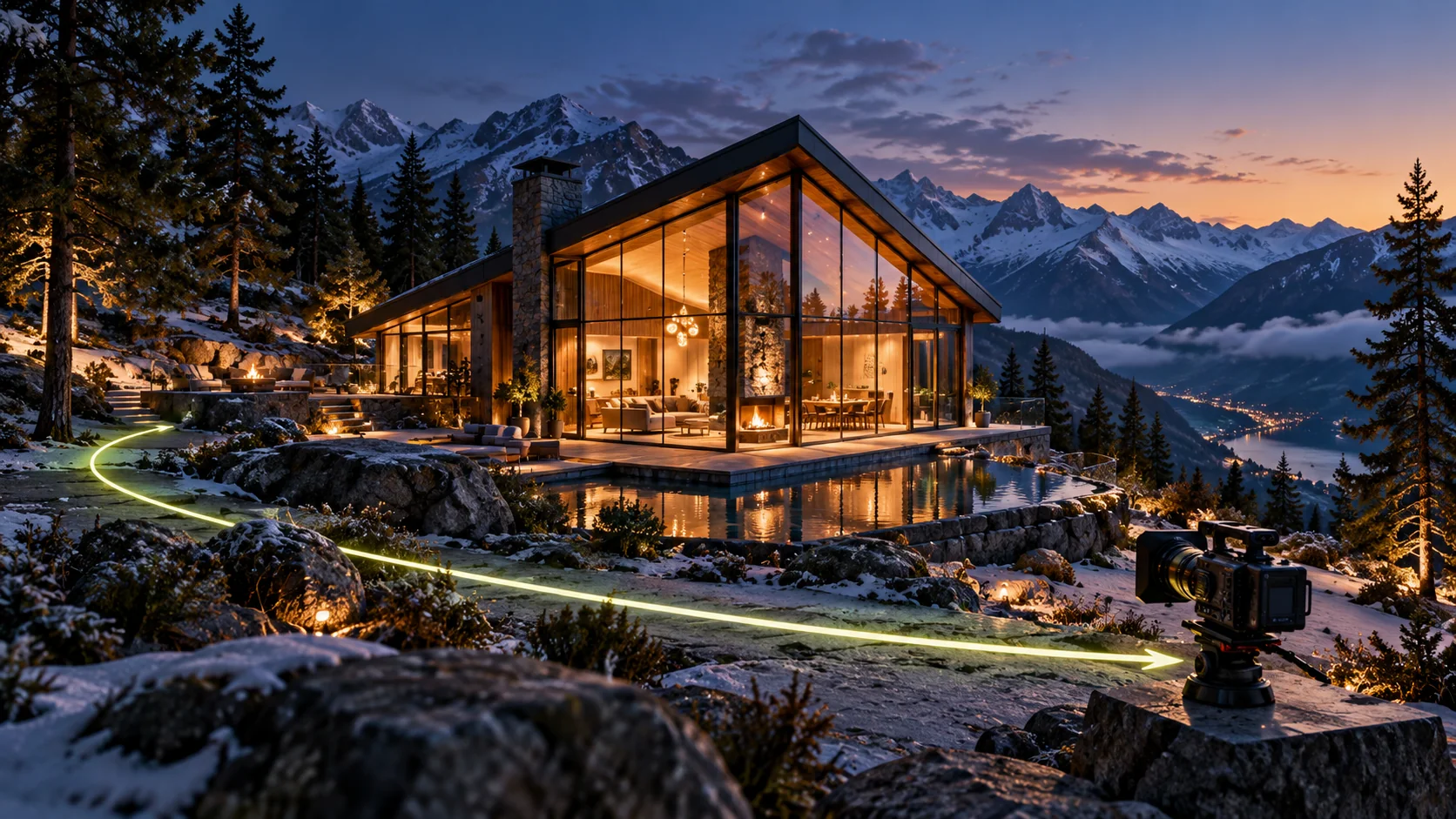
Concept illustration: plan one readable camera move before combining movement, cuts, and a longer story.
Prompt example: a three-shot micro-story
Use a 15-second duration and a provider that exposes the multi-clip control. The PixVerse-owned integration documents a setting named generate_multi_clip_switch; interface labels can differ. Treat the timings below as creative direction rather than guaranteed frame-accurate cuts.
A quiet story about a ceramic artist finishing a small blue cup.
Keep the same adult artist, blue apron, cup, and warm workshop in all shots.

Shot 1, approximately 0–5 seconds: close-up of the artist's hands gently
turning the finished cup on a wooden table. Locked camera, soft window light.
Shot 2, approximately 5–10 seconds: medium side view as the artist lifts
the cup and inspects its rim. A small, slow camera push, natural movement.
Shot 3, approximately 10–15 seconds: close-up of the cup placed beside
the window. The hands leave the frame; hold the finished composition.

Restrained editing, consistent daylight and materials. No new characters,
changing cup shape, generated titles, or elaborate transition effects.
If continuity breaks, generate the shots separately with a consistent reference plan and edit them together. This gives you more control over pacing, cut points, and replacement shots. The Seedance video prompt patterns guide offers transferable ideas for dividing action into beats; its model-specific settings should not be copied into PixVerse requests.
Native audio: write the sound into the scene
V6 Max supports optional native audio. PixVerse describes dialogue, music, and sound effects as part of its audio-visual workflow. Decide whether sound improves the shot before enabling it: a product loop destined for a separately edited soundtrack may not need generated audio at all.
For dialogue, identify the speaker, quote the exact short line, describe delivery, and leave enough time for it. Avoid asking several people to overlap in the first test. For effects, connect the sound to a visible action. For ambience, specify the background and its intended level relative to speech.
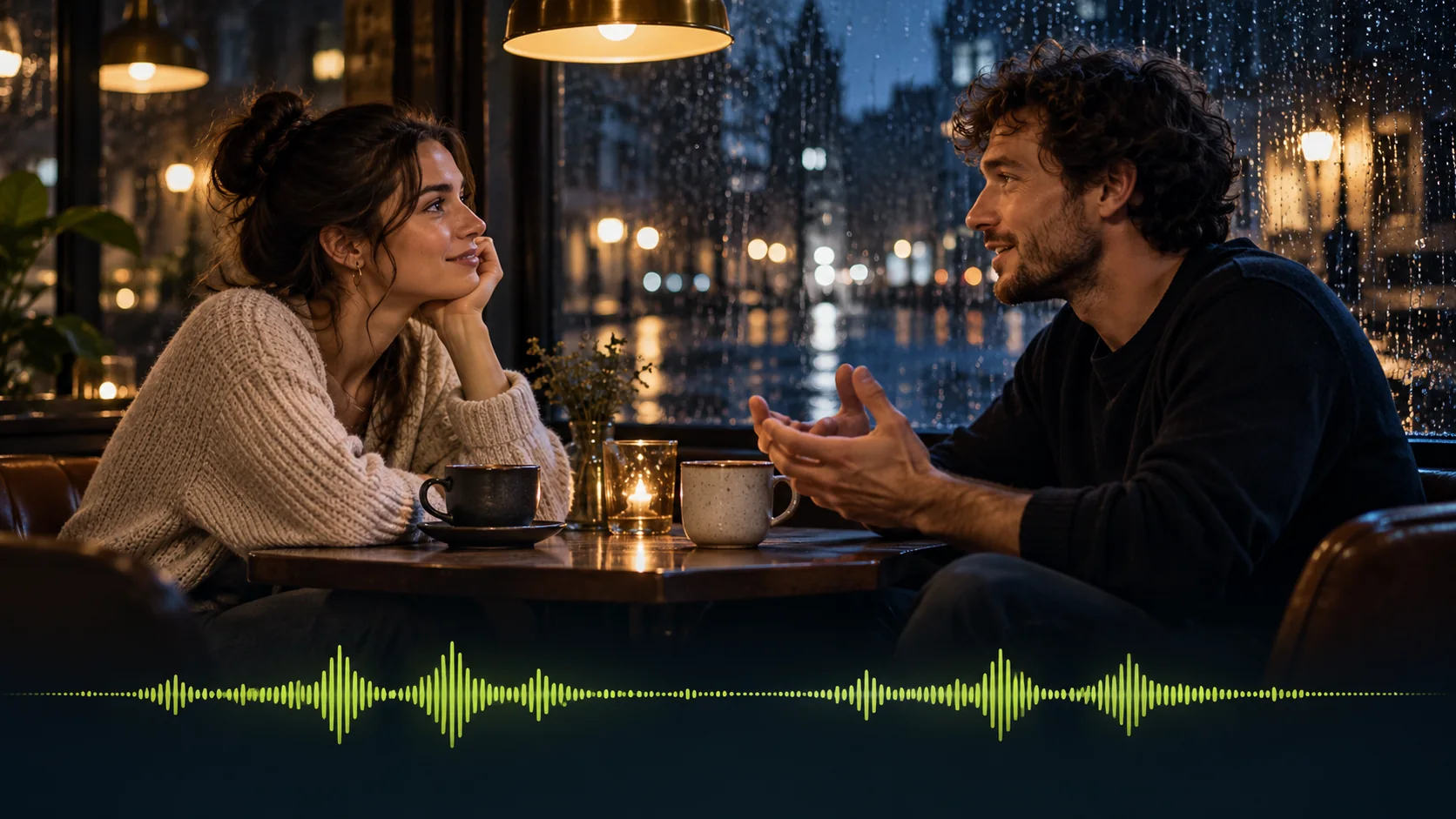
Concept illustration: assign dialogue, effects, and ambience deliberately, then check their timing in the generated clip.
Prompt example: a short dialogue scene
Suggested settings: text-to-video, 8 seconds, native audio enabled.
Medium close-up of one adult ceramic artist standing beside a workbench
in a calm daylight studio. The camera remains locked.

The artist looks toward the camera, smiles gently, and says in a relaxed,
clear voice: "Small details make something worth keeping."
After speaking, the artist looks down at the blue cup on the bench.

Quiet room ambience and one subtle ceramic contact sound as the artist
touches the cup. No background music, overlapping voices, or other speech.
Natural pacing, steady identity, and a brief quiet pause at the end.
Review the sound with headphones and the video at normal playback speed. Then check whether the voice belongs to the intended speaker, whether mouth movement broadly matches the line, whether the ceramic sound occurs at contact, and whether the final pause is long enough to edit. If the line is rushed, shorten the wording or choose a longer duration instead of adding “perfect lip sync” repeatedly.
Review the result before spending more credits
A useful first generation answers a specific question: does the motion work, does the product remain recognizable, or does the dialogue fit? Trying to judge every quality dimension at once makes it harder to choose the next change.
Use the same review pass for every candidate:
- Opening frame: subject, crop, background, and essential features match the brief.
- Middle frames: identity, shape, hands, materials, and lighting remain coherent during motion.
- Final frame: the action reaches a usable endpoint and leaves enough room for the next edit.
- Motion: objects have believable weight, contact, direction, and cause-and-effect behavior.
- Audio: words are intelligible, the right person speaks, and effects align with actions.
- Delivery: the exported ratio, resolution, duration, and audio track fit the project.
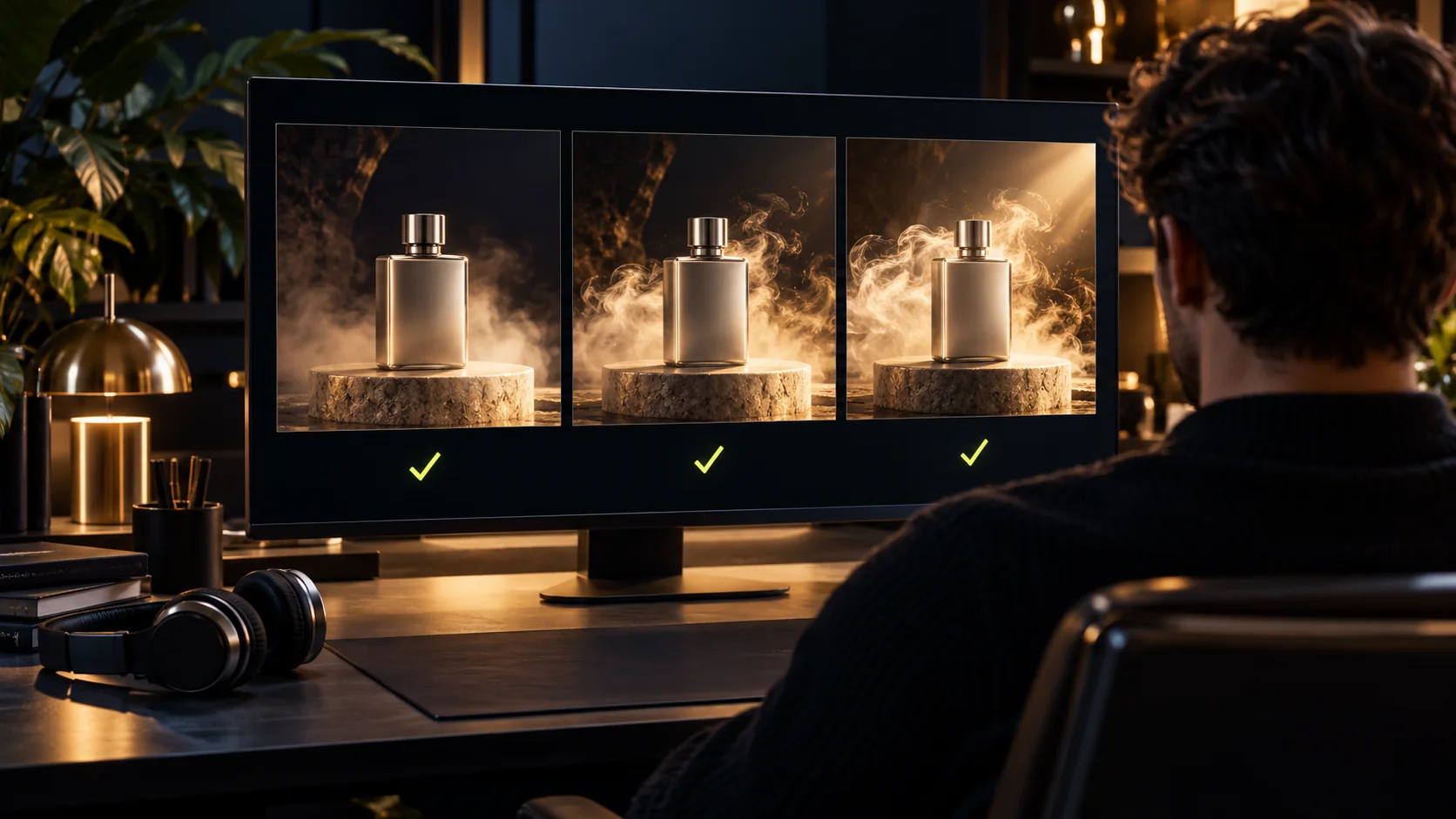
Concept illustration: inspect the beginning, middle, and end rather than selecting a clip from its thumbnail alone.
Troubleshooting: change the layer that failed
The clip looks like a moving photograph. Add one visible action with a beginning and an endpoint. “The lid opens slowly and stops halfway” is more actionable than “make it dynamic.”
The product or face drifts. Reduce the camera move and subject rotation. Start from a clearer reference, keep the scene simpler, and compare multiple moments against the anchor. Do not assume a consistency claim eliminates review.
The camera ignores the brief. Remove competing camera verbs. Choose either a push-in or an orbit for the next test, and describe what the framing should look like at the end.
The story changes subjects between shots. Repeat a short set of stable identity cues and remove unnecessary scene changes. If the identity is essential, split the sequence into individually reviewable clips.
Dialogue is rushed or assigned incorrectly. Reduce the line length, use one speaker, and make speaker identity explicit. Verify that native audio is enabled in the actual request.
Text or logos distort. Preserve a clean area for a title and add verified typography in editing. Treat readable branded details as a production check, even when the rest of the frame looks convincing.
How much does PixVerse V6 Max cost?
There is no single price that describes every service offering the model. The official API prices Max by duration, resolution, and whether audio is enabled; other services can use their own credits, subscriptions, or promotions. Compare the actual quote in the service you will use. Do not treat consumer subscription credits and API credits as interchangeable.
For a controlled budget, test a short clip at a lower resolution, change one variable per attempt, and record the prompt and settings beside each result. Use a seed if your provider exposes one, but do not assume it makes outputs identical across providers or model updates. Move to the final length and resolution once the action and composition work. Higher resolution can reveal more detail; it does not repair an unclear story or a broken motion instruction.
Frequently asked questions
What is PixVerse V6 Max?
PixVerse V6 Max is an AI video generation model that creates short videos from a text prompt or a starting image, with optional native audio. The official API model identifier is v6-max.
How long can a PixVerse V6 Max video be?
The official direct API documents a duration range of 1–15 seconds. Provider interfaces may expose a smaller set of duration choices, so check the selected model and endpoint before generating.
Does PixVerse V6 Max generate 4K video?
The verified direct API output options are 360p, 540p, 720p, and 1080p. Native 4K generation is not documented in the capability map reviewed on October 23, 2026. A separate upscale is not the same as native generation.
Can PixVerse V6 Max generate sound and dialogue?
Yes. Native audio is optional and can include dialogue, sound effects, and music. Availability and controls depend on the provider. Check intelligibility, speaker assignment, lip movement, and sound timing in the result.
Does V6 Max support first and last frames or video extension?
Not in the official capability map reviewed on October 23, 2026. V6 Max currently supports text-to-video and image-to-video; first/last-frame transitions, multi-subject references, video references, extension, and templates are not listed as supported.
Is PixVerse V6 Max available in the Lem Gen Workspace?
This is an editorial guide, not a PixVerse integration announcement. Use Lem Gen to research prompt patterns and prepare image references; generate V6 Max video only in a service that explicitly lists that model.
Build your next shot from a clear brief
Pick one deliverable, choose text-to-video or image-to-video, and write the motion before adding style. Save the first prompt, review the clip against a short checklist, and revise the part that failed. For the next stage of your workflow, browse the Lem Gen prompt gallery, prepare a product reference with the product photography guide, or explore more practical workflows in the Lem Gen blog.