
What Is Dola AI? Features, Uses & Practical Tips
Explore Dola AI’s chat, voice, writing, summaries, and creative tools, plus tips for prompts, privacy checks, and reviewing results.

Dola AI is a general-purpose assistant for everyday learning, productivity, and creative work. It brings text and voice chat together with writing, translation, file and webpage summaries, and image and video creation. The app was previously called Cici, so older guides may use the former name or describe a narrower set of features.
This guide explains what Dola can do, where it can help, how to get more useful responses, and what to review before sharing files. Product details below were checked against Dola’s official Trust Center and app store listings on October 25, 2026. Features, availability, and limits can change.
The cover and five images in this article are AI-generated editorial illustrations. They explain common workflows and are not Dola screenshots or guaranteed product results.
What can you do with Dola AI?
Dola is positioned as a multimodal assistant: you can interact by text or voice and use it for both information tasks and creative work. Its current Trust Center describes availability across mobile, web, and desktop, and support for more than 16 languages. The exact tools and limits shown can differ by platform, region, version, or plan.
Ask questions, learn, and plan
Use a conversation to explore a topic, break a complicated idea into steps, practice a language, or organize a trip or meal plan. For a better answer, name your goal and experience level. For example, ask for a beginner-friendly explanation with one concrete example and a short recap instead of asking only “Explain this.”
Treat the response as a starting point. Check important facts, dates, calculations, and recommendations against sources you trust, especially when the decision has financial, legal, health, or safety consequences.
Draft, rewrite, and translate
Dola can help brainstorm, outline, edit, and polish material such as emails, social posts, or résumé drafts. It can also translate text. Give it the intended reader and desired tone, then review names, idioms, technical terms, and any promises or claims before sending the result.
For example, provide a rough announcement and ask for two concise versions: one warm and one direct. You can then choose a draft and make a specific follow-up edit rather than asking the assistant to rewrite everything from scratch.

A writing assistant can help shape a draft; you still choose the wording and verify the details.
Use voice when typing is inconvenient
Voice interaction is useful when you are walking, collecting an idea, or asking a quick question away from a keyboard. Speak a clear request, then check the transcript or response when names, numbers, or specialist terms matter. Voice input is a faster way to give instructions, not a reason to skip review.
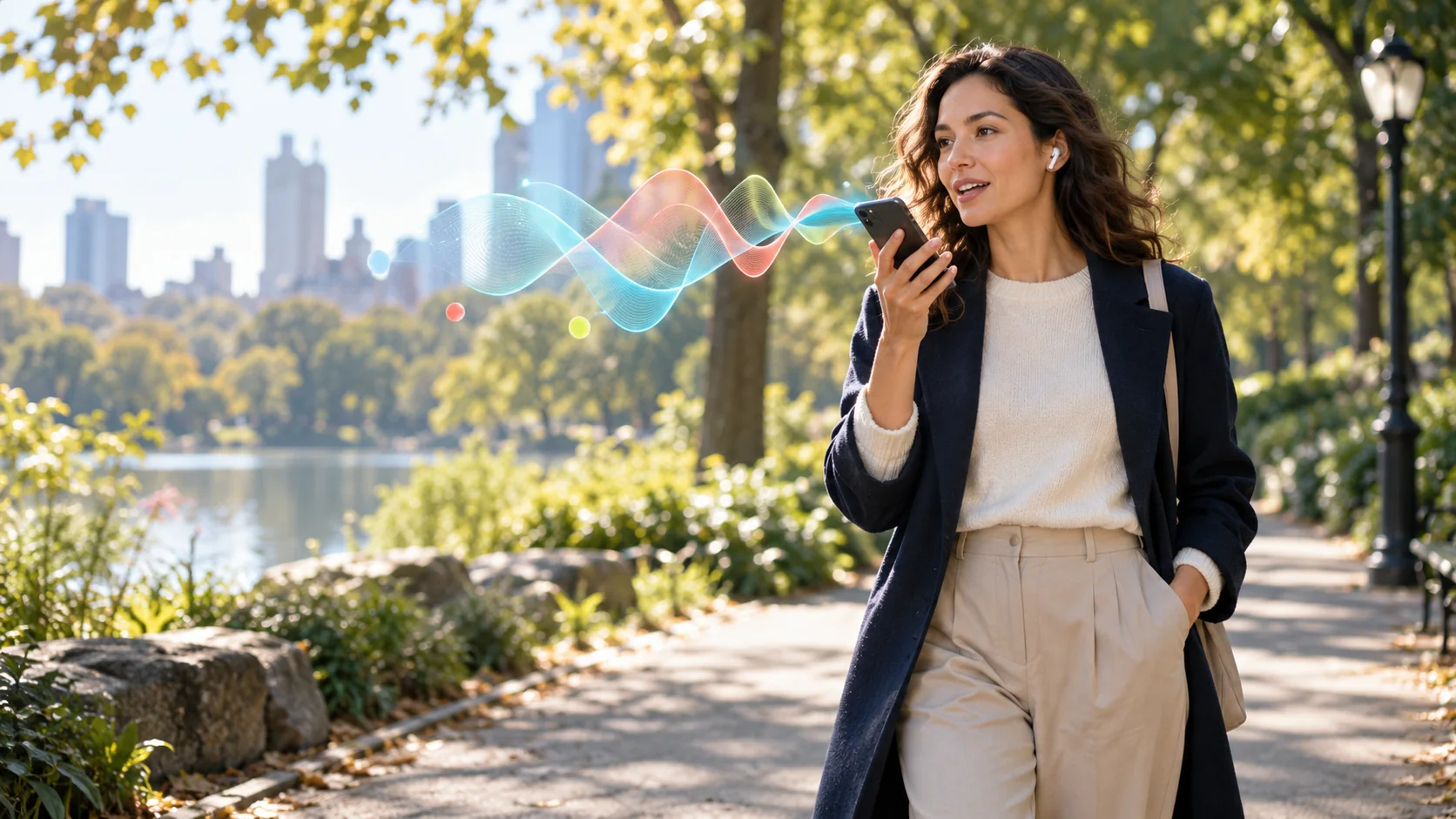
A voice request works best when the task and important details are easy to hear.
Summarize files and webpages
If a supported file or webpage is long, ask Dola to extract the parts you need instead of requesting a vague summary. Name the audience and format: “Summarize this report for a project lead in five bullets. Separate stated facts from open questions, and preserve the figures and dates.”
Compare the output with the source before forwarding it. Summaries can omit qualifications or misread a table, and a polished answer can still be wrong. Do not upload a document unless you have permission to share it and have checked the service’s current privacy terms.

Compare a summary with its source before treating the extracted details as complete.
Create and refine images or videos
Dola’s current product information includes image and video generation, and its app listing describes creating art from ideas or photos and editing or restyling images. This makes it useful for visual exploration: describe a mood, compare a few concepts, or try a revision in everyday language.
Generation is iterative. If an image changes an important subject detail, name exactly what should remain fixed and what may change. Inspect lettering, hands, faces, product details, and other elements that need accuracy. For a more controlled visual prompt workflow, explore Lem Gen’s text-to-image tool, image editor, and image-to-video tool.

Treat generated visuals as drafts: compare options and review important details before publishing.
How to get better answers from Dola AI
A useful prompt makes the job easy to understand and the result easy to check. Try this five-part structure:
- Task: What should Dola do?
- Context: Who is this for, and what information should it use?
- Constraints: What must stay accurate or unchanged? What should it avoid?
- Format: Should the answer be a list, a short draft, a comparison, or visual concepts?
- Review: What should be checked before you use the output?

A clear goal, useful context, and concrete constraints make a result easier to evaluate.
Here is a reusable example for turning meeting notes into an action list:
Task: Turn the notes below into an action list.
Context: This is for a small product team planning next week's launch.
Constraints: Use only details in the notes. Mark unclear owners or dates as "not specified".
Format: Table with action, owner, due date, and open question.
Review: Keep names and dates exactly as written in the source.
For image requests, describe the subject, setting, composition, style, and what must remain consistent. Change one major instruction at a time so you can tell which revision helped. Lem Gen’s image-to-prompt workflow and prompt remix guide offer more ways to turn visual references into reusable instructions.
Dola AI privacy and practical limits
Before you upload a file or share a personal detail, read the current privacy policy and review the controls available in your version of Dola. Its Trust Center describes options to opt out of personalization, memory, and using data for model training. Store disclosures also explain that data practices can depend on the features you use and may change, so check the terms that apply to your account and region.
Avoid sending confidential work, personal identifiers, private images, or material you do not have permission to share unless you have verified the relevant policy and your organization’s rules. You can also test a workflow with non-sensitive sample text first.
Keep these limits in mind:
- Feature access can vary. Confirm the tools, usage limits, and subscription details in your current app or account.
- AI can make mistakes. Review factual answers, summaries, translations, and generated visuals before relying on them.
- A broad assistant is not a specialist workflow. For repeatable image and video production, choose tools that expose the controls and review steps your project requires.
- Your prompt still matters. Be specific about the desired result and the details that should not change.
Is Dola AI worth trying?
Dola AI is worth exploring if you want one assistant for everyday chat, voice input, writing, learning, summaries, and creative experiments. Its range is the main appeal; the trade-off is that a broad assistant may offer less control than a tool designed for one production task. Start with a low-risk request, compare the answer with your source material, and check current feature limits before depending on it.
If your goal is to produce a polished image or video rather than brainstorm one, continue with Lem Gen’s AI product photography prompt guide or explore the Lem Gen prompt library.
Frequently asked questions
Is Dola AI the same as Cici?
The current Dola app listing identifies Cici as its previous name. Older Cici tutorials may not reflect the current feature set, so verify instructions against the app version you use.
Does Dola AI support voice input?
Yes. Dola’s current product information describes text and voice interaction. Check your platform and settings for the voice features available to you.
Can Dola AI summarize a webpage or file?
Dola documents file and webpage summarization. Ask for a defined output and verify the result against the original material.
Can Dola AI make images and videos?
Its official Trust Center describes both image and video generation. The specific controls, daily limits, and output options may vary by account, plan, version, and region.
Is Dola AI free?
The Apple App Store lists the app as free with in-app purchases and describes limits on some features. Check the current app for the plan details available in your region.
Is Dola AI safe for private information?
Review the current privacy policy and in-app settings before sharing sensitive data. Dola describes opt-out controls for personalization, memory, and model-training use, but you should confirm which controls apply to your account before uploading private material.